Keep your extension within reach.
Pin Always Active Window to your Chrome toolbar so it’s one click away.
Open Extensions
Click the Extensions button (the puzzle-piece icon) to the right of the address bar.
Pin Always Active Window
Find it in the menu and click the pin next to its name.
Find it on your toolbar
Look for the green eye icon next to the address bar.
Already pinned? See how to use it
Keep your chosen tabs active.
Keep streams, music, and videos running in the background while you work in another tab. Start with one tab.
In Chrome, open the website you want to keep running
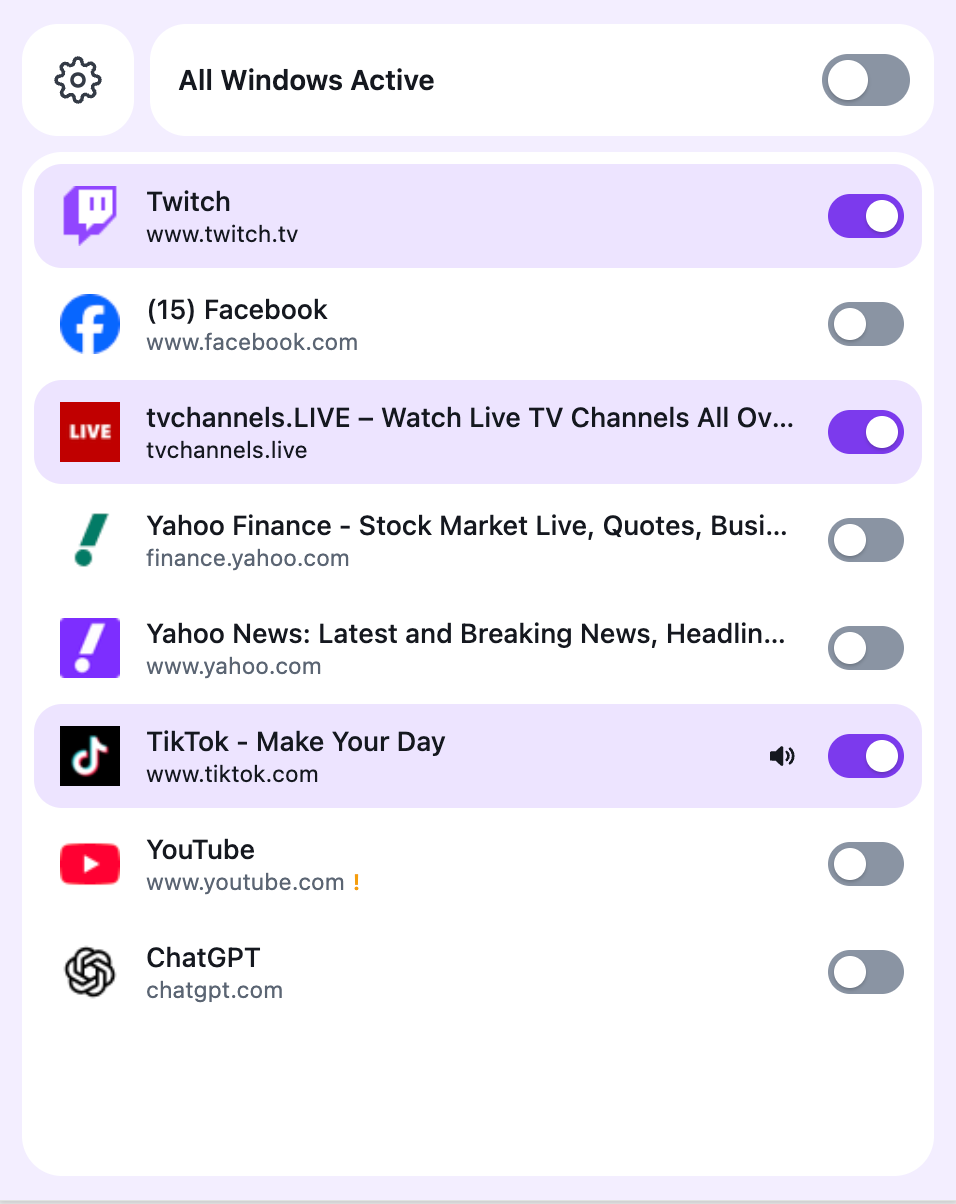
Open Always Active Window
Click the green eye icon in your Chrome toolbar.
Turn on the toggle for that tab
You’ll find it on the right side of the tab’s row.
All Windows Active keeps all open tabs active.
Can’t find the icon? See how to pin it